Your team still spends Monday mornings copying numbers from one workbook into another? Excel automation is the fix that pays for itself the fastest. It sounds technical, but at its core it is a simple trade: instead of a person moving figures around by hand, the spreadsheet does it on its own, the same way every time, without getting tired or distracted on a Friday afternoon.

This article covers the full range of methods, from built-in tools to AI agents, before closing with the specific processes worth automating first.
Excel automation means teaching a spreadsheet to do a task without a human repeating it every single time. That could mean a formula that recalculates itself, a script that pulls in figures from another system, or a bot that clicks through a familiar routine exactly the way a person would, just faster and without a coffee break.
Automating administrative tasks across a business usually starts small, and Excel is often the first place it happens because almost everyone already has it open. At its simplest, automation in a workbook is a rule: when this happens, do that. A cell fills itself in. A report refreshes overnight. A summary email goes out the moment a total crosses a threshold. None of it requires magic, just a clear rule and a tool that can carry it out reliably.
The pressure to automate has grown for a simple reason: the tools finally caught up to the ambition. According to Grand View Research, the robotic process automation market was valued at $4.68 billion in 2025 and is projected to reach $35.84 billion by 2033, growing at a 29% compound annual rate. That is not a niche trend. It reflects how ordinary the idea of a machine handling repetitive office work has become in just a few years.
You do not need to be a large enterprise to feel the strain. Automation in Excel small business searches has climbed for exactly this reason: smaller teams often feel repetitive spreadsheet work more acutely since there is no dedicated analyst to absorb it. A few reliable signs it is time to automate:

Cloud-based tools have widened what counts as automating in Excel, and it now spans a genuine spectrum rather than one single technique. On one end sits a basic macro recorded in a few clicks. On the other sits a fully connected system that pulls figures from five different tools without anyone opening the file at all. Most businesses land somewhere in the middle, and knowing the full range helps you pick the right rung on the ladder.
A macro records a sequence of clicks and replays it on command. It is the gentlest entry point into automating Excel work, and for many repetitive formatting or copying tasks, it is genuinely all you need. VBA, the scripting language behind macros, adds logic on top: loops, conditions, and the ability to react to what is actually in the cells rather than just replaying a fixed sequence.
Power Query sits a level up. Instead of recording clicks, you describe the shape of the information you want, and Excel handles the fetching and cleaning itself. This is where automated Excel workflows usually become genuinely hands-off, since a refresh can run on a schedule without anyone touching the file.
At the far end, a workbook connects directly to other systems (a bank feed, a shipping platform, or an internal database) and updates continuously. Reaching this level of automation in Excel usually means combining a few Excel automation tools together rather than relying on any single feature, which is exactly why the methods in the next few sections matter.

When a business outgrows what point-and-click tools can do, Python-Excel automation is usually the next stop. Python is a general-purpose programming language, and unlike a macro, it is not tied to Excel at all. That independence is exactly what makes it powerful: the same script can read a workbook, reshape it, and write the result somewhere else entirely.
A macro lives and dies inside one workbook. A Python script can run on a schedule outside of Excel entirely, touch dozens of files in a folder at once, and connect to almost any other system through a library built for that purpose. Excel automation with Python also tends to be easier to test and maintain over time, since the logic lives in readable code rather than buried inside cell references.
Two libraries do most of the heavy lifting. Pandas handles the reshaping, filtering, and calculation of large tables efficiently, far beyond what a spreadsheet can comfortably manage. Openpyxl reads and writes native Excel files directly, preserving formatting, formulas, and structure. Together they cover the vast majority of practical automation needs.
If your task fits in one workbook and one person handles it occasionally, Python is likely overkill. It earns its place when volume climbs into the tens of thousands of rows, when the same process needs to run across many files, or when the workbook needs to talk to systems that macros simply cannot reach.
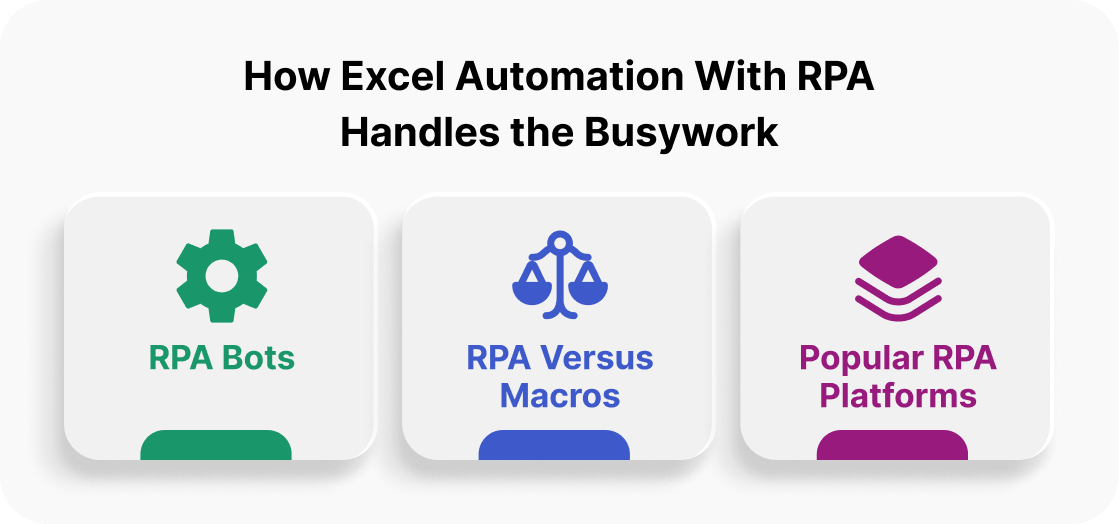
Robotic process automation takes a different approach entirely. Rather than working with the file's underlying structure, Excel automation with RPA mimics a human. It opens the application, clicks the same buttons, types into the same fields, and moves through the exact steps a person would follow, just without pausing or making a typo.
A bot is configured by recording or scripting a sequence of on-screen actions. Because it operates at the interface level, it can bridge tools that were never designed to talk to each other. Pulling a report from one legacy system and typing it into a spreadsheet exactly as a human would, then forwarding the result somewhere else entirely.
The distinction trips people up constantly. A macro operates inside Excel, using its own internal logic and object model. An RPA bot operates on top of the screen, the same way a person does, which means it can span multiple applications a macro could never touch. RPA is heavier to set up but far more flexible across a messy, multi-tool workflow.
UiPath, Automation Anywhere, and Microsoft Power Automate are the names that comes up most often, each with a visual, largely no-code way to design a bot's steps. Most offer a free or low-cost tier, which makes RPA a reasonable trial for a single painful workflow before committing further.

The newest layer on top of everything above is the AI agent for Excel automation, and it behaves differently from anything that came before it. Where a macro or a bot follows an exact script, an agent can interpret an instruction written in plain language and figure out the steps on its own, adjusting when something does not go exactly as expected.
A traditional script fails the moment reality deviates from what it expects: a column moves, a format changes, a field is blank. An AI Excel automation agent can often recognize the deviation and adapt, because it is reasoning about the goal rather than blindly executing fixed steps. That adaptability is powerful, and it is also exactly why oversight still matters, which we cover below.
The appetite for this is real and growing fast. The 2026 Federal Reserve's Survey found that firms employing about 78% of the U.S. labor force had adopted AI in some form. Roughly 54% of the labor force works at firms already using large language models specifically. Inside a workbook, AI for Excel automation can already do a lot.
It can summarize a messy report in plain language. It can classify hundreds of entries by category. It can flag anomalies a formula would miss. It can even draft the narrative that usually accompanies a monthly report. Some form of Excel automation AI now sits behind a growing share of these day-to-day summaries, quietly doing the first pass before a person reviews it.
A well-built chat interface makes an agent easy to instruct, but easy to instruct is not the same as safe to leave unsupervised. AI tools for Excel automation are best treated as a fast first draft, not a final decision-maker, especially anywhere money, compliance, or customer records are involved. The judgment still belongs to a person; the agent just removes the tedious part of getting there.

With five very different approaches on the table, choosing among Excel automation methods is less about which is objectively best and more about which fits your volume, budget, and technical comfort. Here is how they stack up at a glance.
For a small operation, business process automation Excel work almost always starts with the free, built-in tools. Macros and Power Query cost nothing beyond the time to learn them, and they solve the majority of repetitive-report problems a small team actually has.
Once a business runs several recurring reports across departments, business process automation using Microsoft Excel tends to benefit from Python or a light RPA setup, since the volume finally justifies the extra setup time. This is also where dedicated Excel automation software and paid platforms start to pay for themselves against the hours they replace.
A proper document management layer often accompanies automation at this scale, because Microsoft Excel business automation involving regulated or high-volume records needs governance, not just speed.
At this point, custom-built Excel automation solutions from a development team usually outperform any off-the-shelf combination, since they can be shaped exactly around existing systems and compliance requirements.

Beyond the big methods above, a handful of specific Excel automation techniques solve narrow, everyday annoyances on their own, without needing any of the heavier tools. These are worth learning even if you never touch a script.
Few things waste more clicks than manually typing today's date or calculating a due date by hand. Learning to automate dates in Excel with functions like TODAY, WORKDAY, and conditional formatting means deadlines flag themselves in red before anyone has to notice they are close.
Rather than scanning a report by eye for anything unusual, a conditional rule can highlight it automatically the moment the figures update. This single habit catches more errors than most manual review processes ever do, simply because it never gets tired or skips a row.
A report that refreshes itself overnight means the first person into the office sees current figures without lifting a finger. Setting this up once, properly, removes a recurring task from someone's calendar permanently.
Validation rules stop bad information at the door instead of catching it downstream. A dropdown list instead of a free-text field, a range check on a number, a required format on a date: small guardrails that quietly prevent the errors that are hardest to trace later.

Purpose-built billing platforms eventually replace this step at scale, but many clinics and small practices start by automating the reconciliation inside Excel itself: matching submitted claims against payments received, flagging the gap, and surfacing it for a person to chase down rather than hunting through the whole ledger by hand.
Concepts are easier to absorb with a concrete picture attached. Here are a few Excel automation examples drawn from workflows that look a lot like what most businesses already run.
Ashley Francis, a CPA who runs The Francis Group in Seattle, spent years manually generating engagement letters and importing financial data for her tax planning clients. Each engagement letter alone took 30 to 60 minutes to put together by hand. After building automations in Microsoft Power Automate, she cut that process down to a fraction of the time and now generates the letters for her entire client base in under an hour combined. Her story is featured on Microsoft's own Power Platform blog and covered independently by the Journal of Accountancy.
Detroit Manufacturing Systems, a tier-one automotive supplier for Ford and Volvo, ran its finance team through what one of its data analytics managers called "Excel gymnastics": manually consolidating 10 metrics from 6 different sources every single reporting cycle, on top of daily manual checks in SAP to investigate inventory discrepancies. After automating that consolidation, the company now saves more than 150 hours of manual work every week across finance, supply chain, and HR, with 110 metrics unified into one automated dashboard.

Sometimes the hardest part is simply not knowing what is possible. Here is a quick list of Excel automation ideas pulled from different departments to spark your own list before we get to the full breakdown below.
Supply chain and logistics tools show how far this can scale. A business that starts with a simple reorder sheet often ends up, a year later, automating routing and delivery windows across an entire fleet. Small ideas like the ones above tend to compound once a team sees the first one actually work.
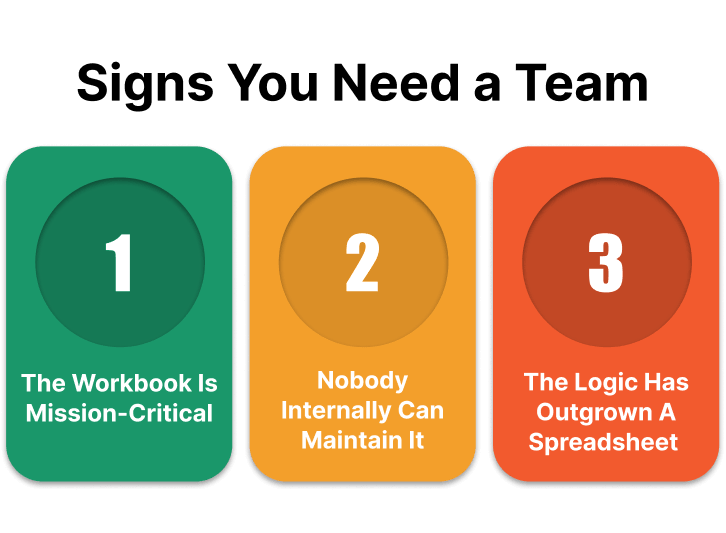
Not every workflow should stay a do-it-yourself project forever. At a certain point, Excel automation services from an outside team become the faster, safer path, especially once the workbook touches money, compliance, or customer records.
A capable Excel automation company starts by mapping your current process rather than jumping straight to a tool, because the workbook itself is usually the best specification available. CleverDev Software approaches these projects exactly that way, reading the existing logic, preserving what already works, and rebuilding the fragile parts on firmer ground, whether that means a properly automated workbook or a full custom application once Excel has reached its ceiling.

Not every task in a spreadsheet is worth automating. Some save you a minute here and there, while others quietly eat up hours every single week. Here are the 9 processes that consistently return the most time for the least setup effort, based on how often they show up across real business workflows.
Pulling vendor invoices into a tracking sheet, matching them against purchase orders, and routing anything unusual for approval is one of the highest-friction manual tasks in most finance teams, and one of the easiest to automate first.
Consolidating figures from several source files into one monthly report is repetitive, time-boxed, and formula-driven, which makes it close to the ideal automation candidate.
Wherever the same information gets typed into more than one place, that duplication is pure risk with no upside. Consolidating multiple source files automatically removes both the effort and the chance of a mismatch.
Inventory automation is one of the clearest wins available, since stock counts change constantly and manual tracking almost always lags reality. Reorder points can trigger themselves the moment a threshold is crossed, and an online inventory management system is often the natural next step once a spreadsheet-based version proves the concept works.
Hours worked, overtime rules, and deductions are exactly the kind of rule-based math a spreadsheet handles well once set up properly. That cuts both the time spent each pay period and the chance of a mistake reaching an employee's paycheck, which is the kind of error that damages trust fast when it happens.
A sheet that flags leads gone quiet for a set number of days, or customers due for a renewal conversation, keeps relationships from slipping through the cracks. Nobody has to remember to check, and nothing depends on one person's memory or how busy their week happens to be.
Logging who changed what, and when, is tedious to do by hand and easy to automate through simple tracked entries. It also happens to be exactly the kind of record an auditor wants to see kept consistently, not reconstructed after the fact.
Renewal dates, contract expirations, and recurring deadlines are simple to track automatically and painful to track by memory. A workbook that emails a reminder a week out removes an entire category of last-minute scrambling.
Instead of manually updating a slide deck before every leadership meeting, a connected dashboard reflects current numbers at all times. That shift means the conversation can focus on what the numbers actually mean, instead of burning the first ten minutes checking whether they're even current.
Every hour a spreadsheet saves on its own is an hour handed back to the people running the business, not the ones babysitting it.
Fewer errors reach a customer or a paycheck. Reports sit ready the moment someone needs them, not a day late. Nobody has to remember to chase a lead or catch a renewal date, because the workbook already caught it. No single person has to carry the whole process in their head just to keep it running.
Pick the one process that costs your team the most hours this month, and give it a try. That's usually all it takes to see what the rest of your workflows could become.


Tech & Innovation Expert
Anastasiya is committed to making the complex simple. Her passion for writing, proficient research, and strong interviewing skills allow her to share in-depth insights into the ever-evolving IT landscape.

Our newsletter is packed with valuable insights, exclusive offers, and helpful resources that can help you grow your business and achieve your goals.